Etesting

Deploy manual for RP on D03

PXE服务器环境

服务器IP地址:192.168.3.100
TFTP根目录:/var/lib/tftpboot

下载相应版本的RP映像文件到tftp目录

RP映像文件以latest版本为例,需要下载的RP映像文件包括:uefi、centos-installer。文件下载链接如下:
uefi:https://builds.96boards.org/snapshots/reference-platform/components/uefi/latest/debug/d03/
centos-installer: https://builds.96boards.org/snapshots/reference-platform/components/centos-installer/latest/
使用download_files.sh脚本进行文件下载。

1
2
3
4
5
6
7
8
9
10
11
12
13
TFTP_ROOT=/var/lib/tftpboot
mkdir ${TFTP_ROOT}/rp1612 && cd ${TFTP_ROOT}/rp1612
mkdir -p uefi/snapshots/latest
mkdir -p centos-installer/snapshots/
wget http://jarsonfang.github.io/etesting/Estuary/Documents/D03/Deploy-manual-for-RP-on-D03/download_files.sh
chmod +x download_files.sh
export PATH=${PWD}:$PATH
pushd uefi/snapshots/latest
download_files.sh https://builds.96boards.org/snapshots/reference-platform/components/uefi/latest/debug/d03/
popd
pushd centos-installer/snapshots
download_files.sh https://builds.96boards.org/snapshots/reference-platform/components/centos-installer/latest/
popd

拷贝grubaa64.efi文件到tftp根目录

为D03单板从PXE环境启动做准备。

1
2
3
4
5
cd ${TFTP_ROOT}
mv grubaa64.efi grubaa64.efi.bk
pushd rp1612/centos-installer/snapshots/latest
cp EFI/BOOT/grubaa64.efi ${TFTP_ROOT}
popd

拷贝D03.fd到用户主目录

为升级UEFI做准备。

1
2
3
4
cd ${TFTP_ROOT}
pusd rp1612/uefi/snapshots/latest
cp d03/D03.fd ~/
popd

准备grub.cfgks.cfg

为单板从PXE环境启动做准备。(假定所使用的D03单板序号为5)
修改tftp根目录下以D03单板的MAC地址为结尾的grub.cfg文件,使用以下命令查看D03单板所使用的网卡MAC地址:

1
2
jarson@LAVA:~$ grep "BMC5" /usr/local/openlab/openlab_conf/boardinfo.cfg
BOARD5: type=D03, serno=BMC5, power=BMC5, mac=c0-a8-03-fa-00-04

例如本次部署的D03单板的MAC地址为c0-a8-03-fa-00-04,则修改/var/lib/tftpboot/grub.cfg-01-c0-a8-03-fa-00-04文件,在文件末尾添加以下内容:

1
2
3
4
5
6
7
8
9
10
11
menuentry 'Install CentOS Linux 7 D03 --network' --class red --class gnu-linux --class gnu --class os {
set root=(tftp,192.168.3.100)
echo 'Loading kernel...'
linux /rp1612/centos-installer/snapshots/latest/images/pxeboot/vmlinuz ip=eth0:dhcp \
console=ttyS0,115200 earlycon=hisilpcuart,mmio,0xa01b0000,0,0x2f8 \
pcie_aspm=off \
inst.stage2=nfs:192.168.3.100:/var/lib/tftpboot/rp1612/centos-installer/snapshots/latest \
inst.ks=nfs:192.168.3.100:/var/lib/tftpboot/rp1612/ks.cfg
echo 'Loading initrd...'
initrd /rp1612/centos-installer/snapshots/latest/images/pxeboot/initrd.img
}

配置NFS服务器,共享对/var/lib/tftpboot文件目录的访问,在/etc/exports文件中添加以下内容,然后重启NFS服务。

1
/var/lib/tftpboot *(rw,sync,no_root_squash)

下载ks.cfg文件到tftp目录

1
2
cd /var/lib/tftpboot/rp1612
wget http://jarsonfang.github.io/etesting/Estuary/Documents/D03/Deploy-manual-for-RP-on-D03/ks.cfg

升级UEFI

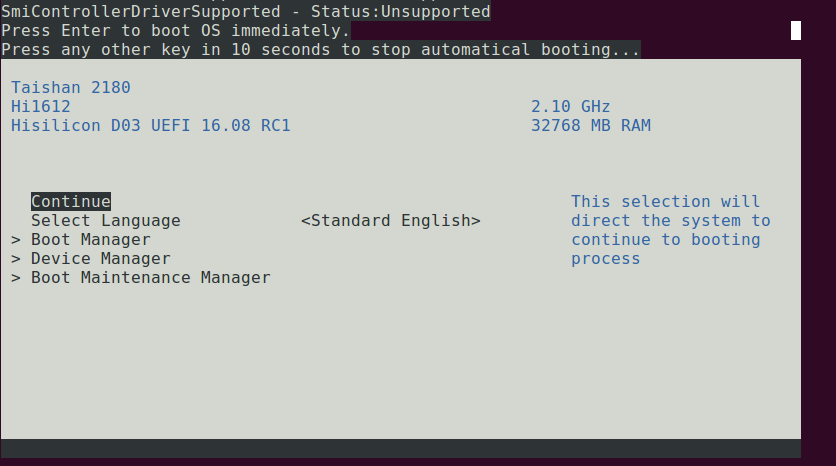
  1. 重启单板至UEFI菜单,如图1所示:

    1
    $ board_reboot 5
    图1. UEFI - Main menu
  2. 在“EFI Internal Shell”中配置IP地址
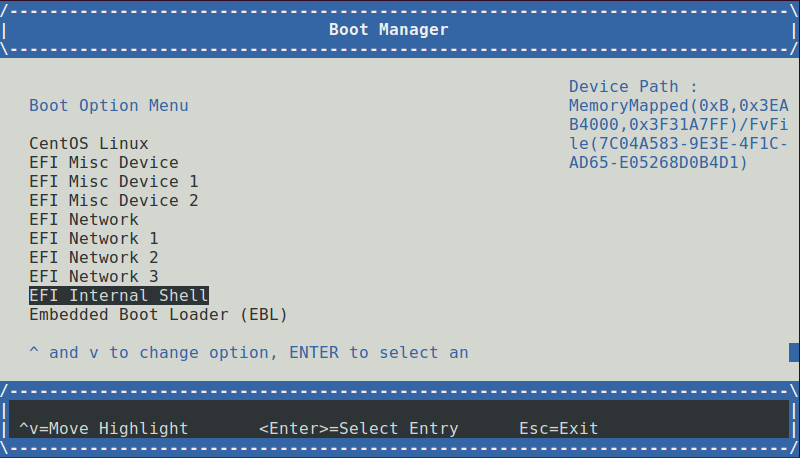
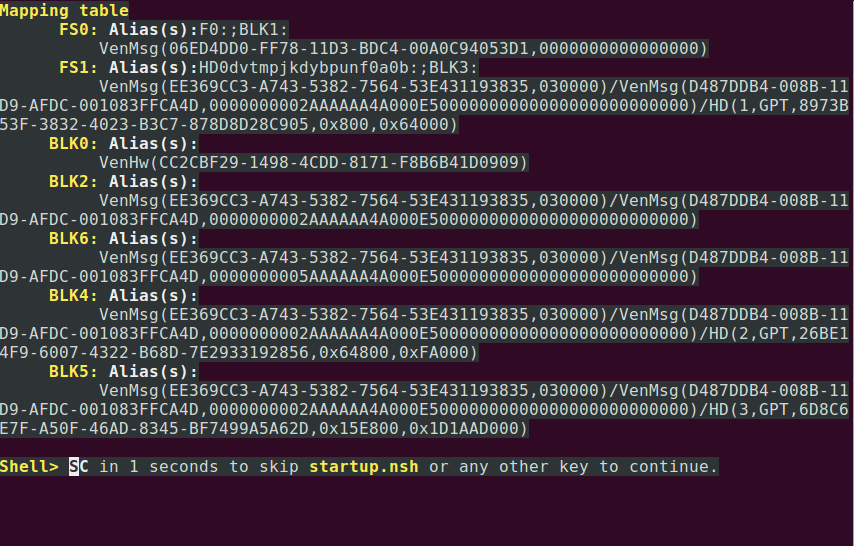
    选择“Boot Manager”->“EFI Internal Shell”进入“EFI Internal Shell”,
    “Boot Manager”菜单界面,如图2所示:

    图2. UEFI - Boot Manager

    “EFI Internal Shell”界面,如图3所示:

    图3. UEFI - EFI Internal Shell

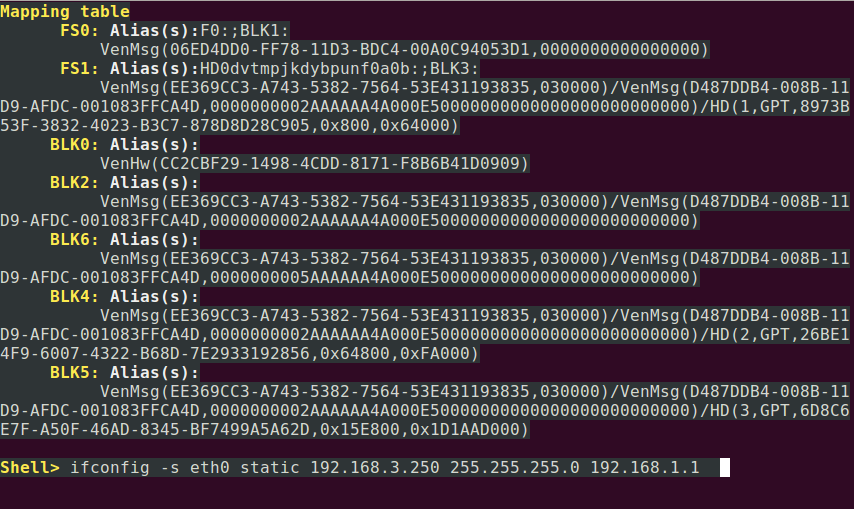
    使用以下命令配置单板IP地址:

    1
    ifconfig -s eth0 static <IP address> <mask> <gateway>

    e.g.:

    1
    ifconfig -s eth0 static 192.168.3.250 255.255.255.0 192.168.1.1

    如图4所示:

    图4. UEFI - Config IP address

    D03单板IP地址可使用下面的命令获取:

    1
    2
    jarson@LAVA:~$ grep "BMC5" /usr/local/openlab/openlab_conf/bmcinfo.cfg
    BMC5: ip=192.168.3.250, interface=lanplus, account=root, pass=Huawei12#$
  3. 在“Embedded Boot Loader(EBL)”模式中烧写BIOS文件
    在“EFI Internal Shell”中输入“exit”回到UEFI主菜单界面,然后选择“Boot Manager”->“Embedded Boot Loader(EBL)”进入“Embedded Boot Loader(EBL)”模式。如图5、图6所示:
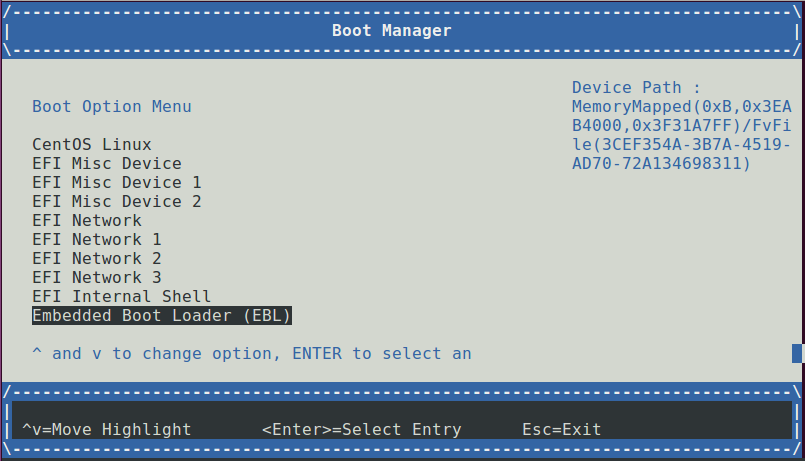
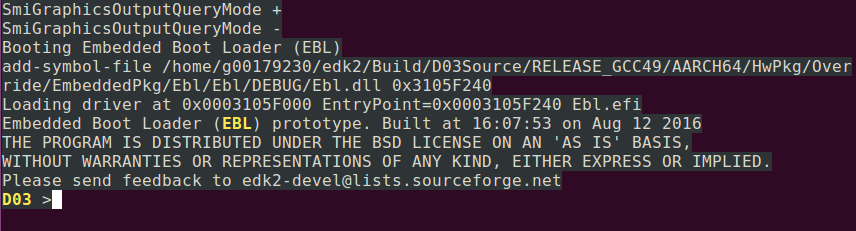
    图5. UEFI - Boot Manager 图6. UEFI - Embedded Boot Loader(EBL)

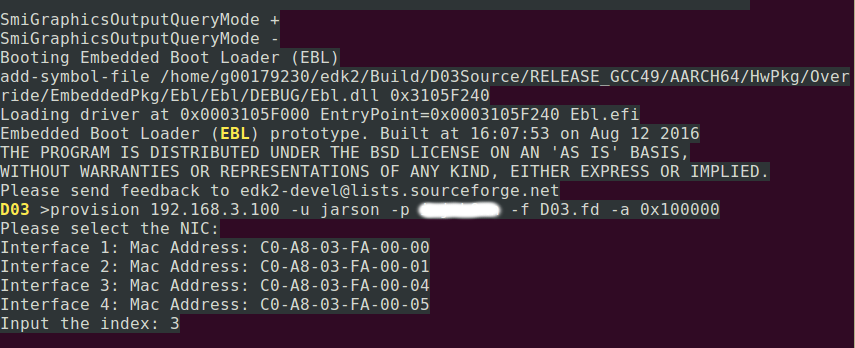
    在“EFI Internal Shell”中输入以下命令进行BIOS文件烧写:

    1
    2
    3
    4
    # Download file from FTP server to board's RAM
    provision <server IP> -u <ftp user name> -p <ftp password> -f <UEFI binary> -a <download target address>
    # Write the data into NORFLASH
    spiwfmem <source address> <target address> <data length>

    e.g.:

    1
    2
    provision 192.168.3.100 -u jarson -p xxxxxx -f UEFI_D03.fd -a 0x100000
    spiwfmem 0x100000 0x0 0x300000

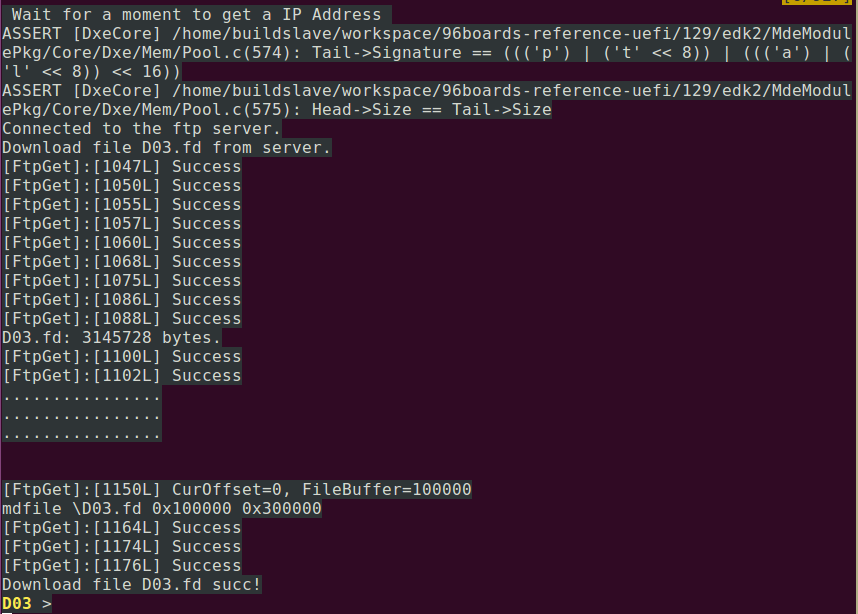
    1) 下载BIOS映像文件,如图7、图8所示:

    图7. UEFI - Download BIOS image

    上图中提示选择网卡设备,通过查看网卡MAC地址进行选择。

    图8. UEFI - Download BIOS image (continue)

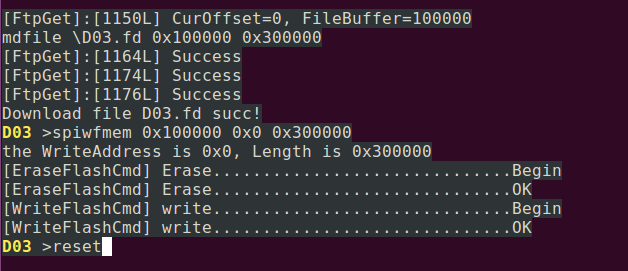
    2) 写入BIOS映像文件,如图9所示

    图9. UEFI - Write BIOS image

    写入完成后,输入“reset”命令重启单板,至此,UEFI升级完成。

PXE方式安装系统

重启单板至UEFI主菜单,在“Boot Manager”菜单中选择从“EFI Network 2”启动,如图10所示:
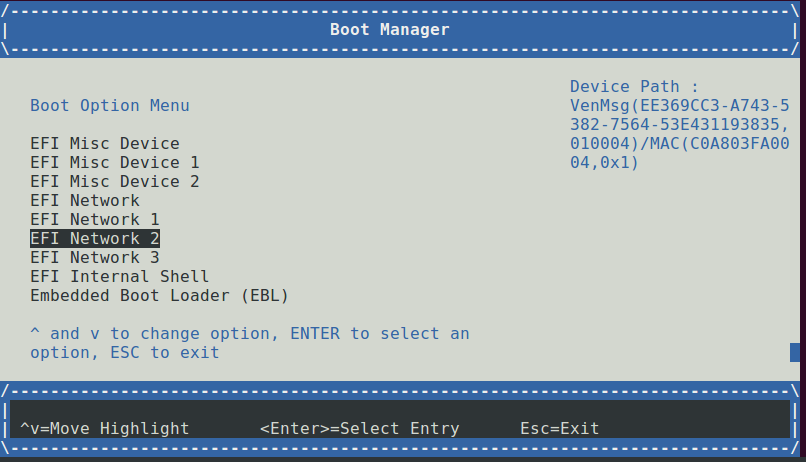
图10. UEFI - Boot Manager
启动至grub菜单,选择“Install CentOS Linux 7 D03 –network”启动,如图11所示:
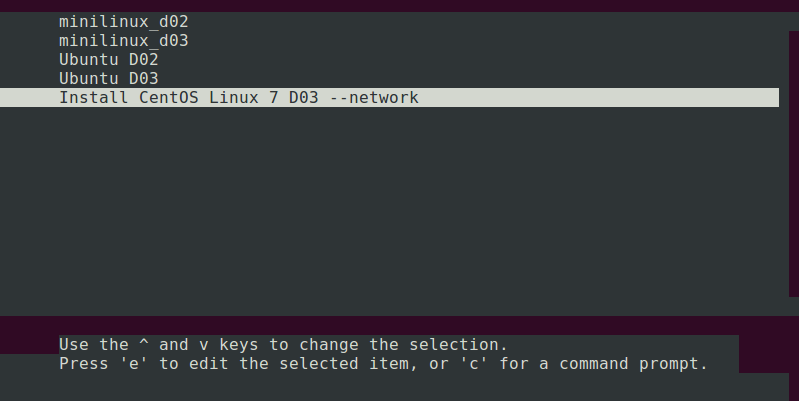
图11. Grub menu
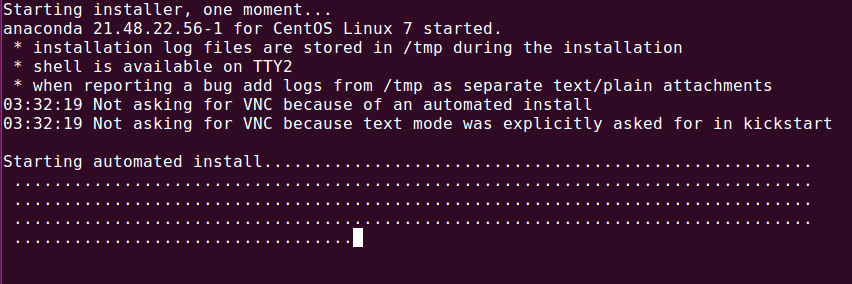
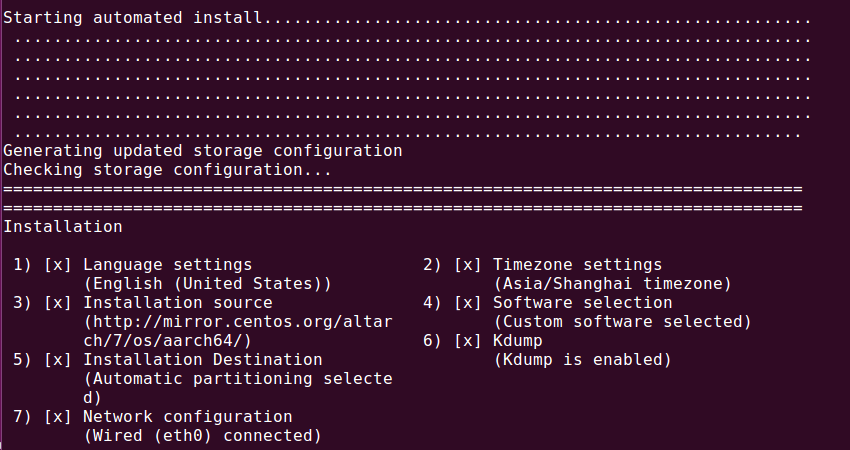
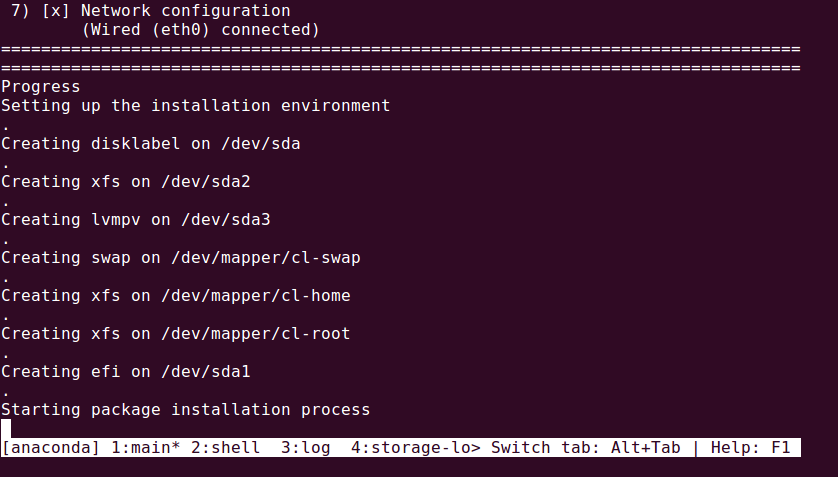
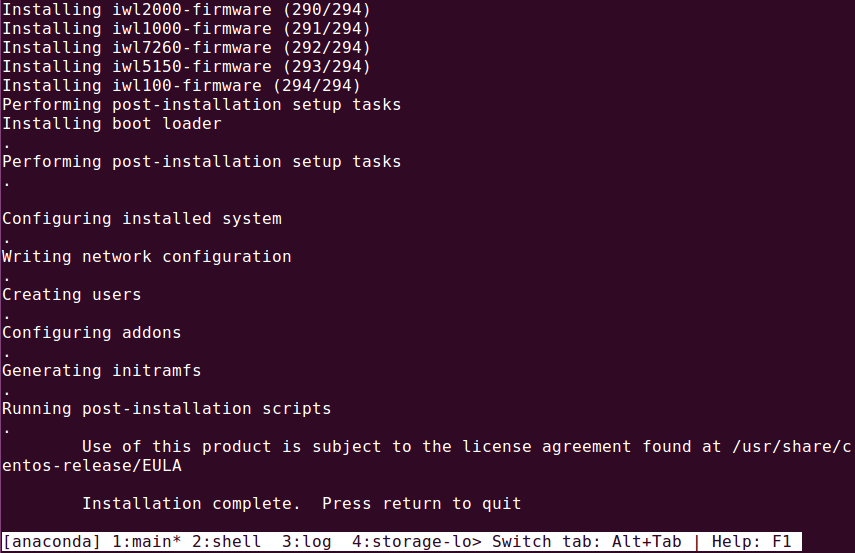
接着系统实现PXE方式自动安装,如图12、图13、图14、图15所示:
图12 Installing CentOS Linux
图13 Installing CentOS Linux (Continue)
图14 Installing CentOS Linux (Continue)
图15 Installing CentOS Linux (Continue)
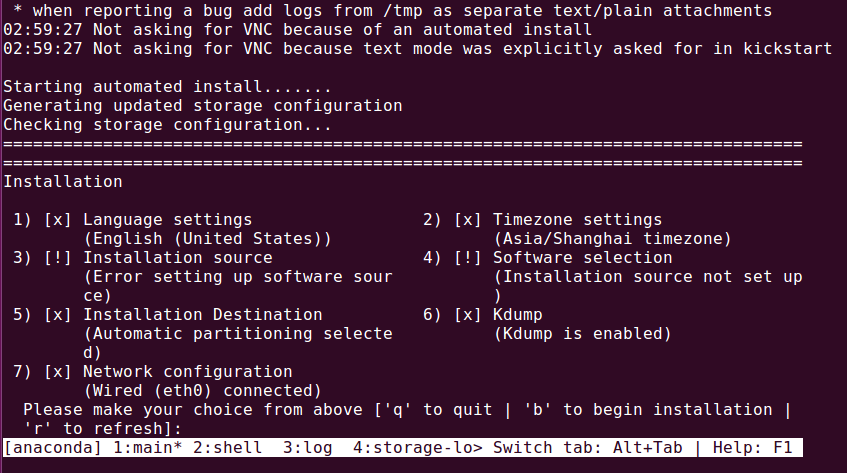
如果网络繁忙,则可能出现如图16所示的情况:
图16 Installing CentOS Linux (Continue)
若出现上图所示情况,则重启单板,重复PXE方式安装系统的所有步骤。

系统安装完成后,按回车键退出安装并重启系统。
系统默认初始用户名:linaro 密码:linaro

热评文章